

https://www.theodinproject.com/lessons/foundations-git-basics this is the lesson that i am following. I completed the Create the Repository section successfully. I also completed the Use the Git Workflow section successfully. It’s the Modify a File or two where I am facing all the difficulties.
Can someone please show me the way how to do it ?
I have done everything till we come to modify a file or two. I did everything in my WSL terminal. Then it’s being said over here we will open the directory (which directory) in visual studio code by using the command inside my repository (which repository and where is it located?) These are the questions l need to figure out.
WSL might make things a bit more complicated to understand at first, so that’s fair.
What do you see if you type
pwdinto the terminal where you are working? What aboutls? You can redact any personal info before pasting it in (ex. if your name is included in a file path).pwdwill output the current directory, which can help you track down the right folder to open in VSCodelswill output a list of all files in the current directory. If you see weird looking entries like.or.., don’t worry about those (I’m happy to explain, but for now it’s not important)Usually when you are working on something, you would put all the files related to that project in a folder. That highest level folder is the one that you open in VScode, since you will be able to see all the subfolders easily. For example, my folders might look like this
|- My Documents
|   |-repos
|   |   |-My New Website
|   |   |
|   |   |-My app
|   |
In VSCode, you would open the “My New Website” folder when you are working on that project. In your case, you likely need to open whatever folder comes up from the output of
pwd, or one of the subfolders (if that one shows “/…/…/repos”. If your terminal supports it, you might also be able to open the current folder in vscode with a command likecode ., or in the file explorer withopen .If you have a messy setup, I would recommend learning some basic CLI commands for navigating your terminal first. That will help a lot for figuring out what is happening. Afterwards, you can easily navigate to the folder with all of your Odin Project files via. the terminal.
As for the repository, usually the repository is created from the root (the highest level) of whatever project you are working on. So if I cloned a repository called
otter/my-new-website, the repository is tied to the foldermy-new-website.This comes up as i type pwd and ls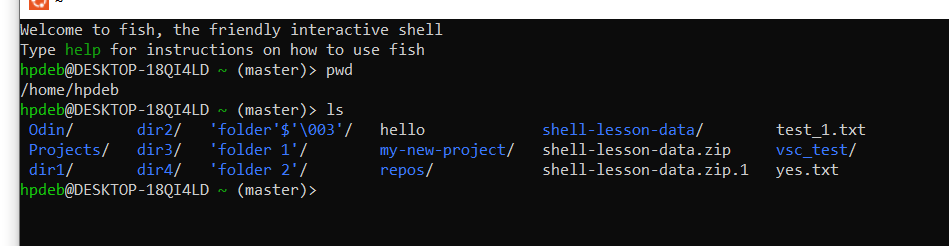
Hmm, yea WSL doesn’t make it clear.
So I think WSL sets up an artificial Linux directory system somewhere inside of Windows. In your case, it might be at
\\wsl$\ubuntu\home\hpdebif you want to hunt around for that on Windows File explorer. (source: https://superuser.com/questions/1185033/what-is-the-home-directory-on-windows-subsystem-for-linux) Afterwards, you can try and open that same folder in VS Code, once you know where it is.If none of that works, I also see that there is an extension for VS Code that makes it easier to connect to WSL. You might be better off by installing that extension to get things connected more easily. Supposedly after it is set up, you will be able to run
code .in your terminal to open the current directory in VS Code: https://code.visualstudio.com/docs/remote/wsl-tutorialnote: Don’t install VS Code a second time inside of WSL, that would be a pain to work with. Instead, this tool should take advantage of VS Code’s ability to connect to a remote server, and instead get it to “connect” to your local WSL file system.